Automation
How to Use GoHighLevel With OpenAI for Custom AI Responses
Stop using generic templates. Learn how to use GoHighLevel with OpenAI to build custom AI responses that nurture leads, answer FAQs, and book calls on autopilot.
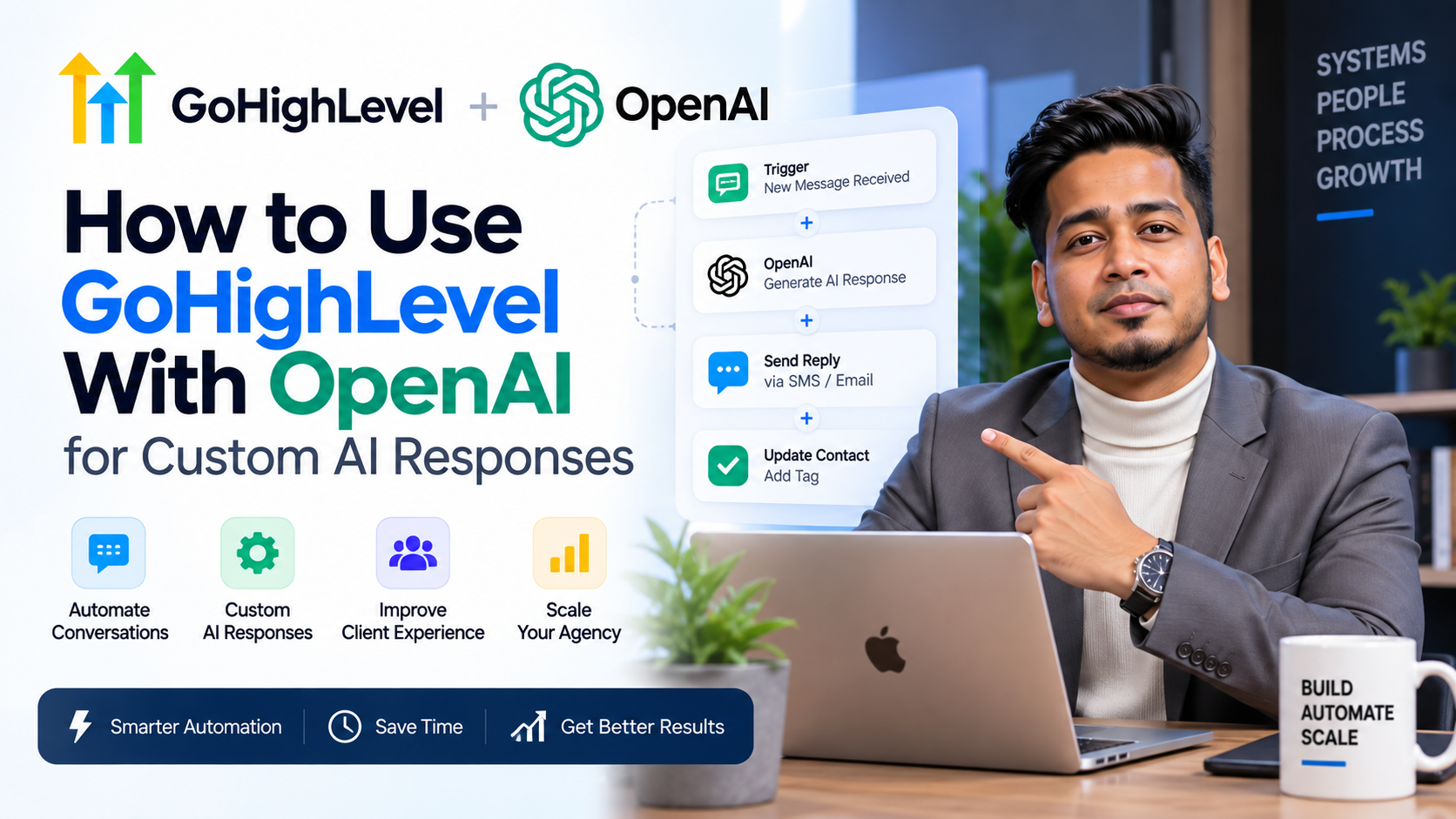
Most lead follow-up fails because it sounds robotic. When a prospect asks a specific question about your pricing or process at 2 AM, a generic "Thanks, we'll get back to you" kills the momentum. To scale without ballooning your overhead, you must learn how to use GoHighLevel with OpenAI to build custom AI responses that sound human and drive action. By bridging the gap between your CRM and LLMs (Large Language Models), you turn a static database into a 24/7 sales machine.
Integrating AI into your workflows isn't just about sending messages; it's about context. When you use GoHighLevel with OpenAI, you can feed specific lead data into the prompt, ensuring every response is tailored to that individual's needs, stage in the funnel, and previous objections.
Why You Should Use GoHighLevel With OpenAI for Lead Nurturing
Traditional automation is binary—if A happens, do B. AI adds a layer of interpretation. Instead of hoping your keyword triggers catch every variation of a customer's question, OpenAI analyzes the intent.
Here is why this integration is a game-changer for GHL users:
- Instant Gratification: Leads are 9x more likely to convert if followed up within 5 minutes. AI ensures that happens even while you sleep.
- Contextual Awareness: You can pass custom fields (like "Industry" or "Budget") from GHL to OpenAI to generate hyper-personalized replies.
- Reduced Friction: AI can handle the "small talk" and FAQ phase, only handing the conversation to a human once a meeting is booked.
- Cost Efficiency: One AI workflow can do the work of three virtual assistants handling initial triage.
The Technical Framework: How to Use GoHighLevel With OpenAI
To build these custom AI responses, you need a GoHighLevel account (Agency Pro or higher recommended for API access) and a paid OpenAI account with API credits. You have two main routes: using the native GHL "AI Ad-hoc" tool or the more robust "Custom Webhook/Premium Action" route.
Step 1: Set Up Your OpenAI API Key
Before you can build the workflow, you need to generate an API key from your OpenAI platform dashboard. Ensure you have set a usage limit to prevent unexpected costs. In GHL, you will navigate to Settings > Integrations to link your accounts if using native tools, or prepare to use the 'ChatGPT' action in the workflow builder.
Step 2: Create the Trigger
Every AI response starts with a trigger. Common triggers include:
- Customer Replied: Triggered when a lead sends an SMS or GMB message.
- Form Submitted: Triggered when a lead provides a detailed long-form answer in a contact form.
- Chat Widget Message: Triggered by website visitors.
Step 3: Configuring the "ChatGPT" Action
This is where you actually use GoHighLevel with OpenAI to generate the content. In the workflow builder, add a new action and select "ChatGPT."
You will be prompted to provide:
- Model: Select
gpt-4oorgpt-3.5-turbo(GPT-4o is recommended for complex logic). - Temperature: Set between 0.2 and 0.7. Lower means more factual; higher means more creative.
- System Prompt: This is the most critical part. You must tell the AI who it is (e.g., "You are a helpful assistant for SkyByte Agency").
Strategic Prompt Engineering for GHL Workflows
To get the best custom AI responses, your prompt needs to be structured. Do not just say "Answer this message." Use the following structure inside your GHL ChatGPT action:
| Prompt Element | Purpose | Example |
|---|---|---|
| Role | Defines the tone | "You are a senior sales consultant for a luxury SEO agency." |
| Context | Gives the AI facts | "We offer SEO, GHL setups, and Funnels. Prices start at $2k/mo." |
| Constraint | Sets boundaries | "Do not mention pricing for custom builds. Keep responses under 160 characters." |
| Variable Data | Personalizes the text | "The lead's name is {{contact.first_name}} and they are interested in {{contact.service_interest}}." |
| Goal | Defines the outcome | "Your goal is to get the user to click this link: [Booking Link]." |
Advanced Workflow: The "AI Buffer" Method
One mistake many agencies make when they use GoHighLevel with OpenAI is sending the AI response immediately without a safety net. We recommend the "AI Buffer" method to ensure quality control:
- Trigger: Customer Replied.
- Internal Notification: Send the AI-generated response to a Slack channel or internal GHL notification first.
- Wait Step: Add a 2-minute wait step to allow a human to "cancel" the workflow if the AI output is incorrect.
- Send Message: If not cancelled, the system sends the
{{chatgpt.response}}to the lead via SMS or Email.
5 Use Cases for Custom AI Responses in GHL
- Handling Pricing Objections: When a lead says "That's too expensive," the AI can automatically reference a case study showing ROI instead of you having to manually defend your rates.
- Qualifying Leads: The AI can ask follow-up questions like "What is your current monthly revenue?" and store the answer in a GHL custom field using the "Update Contact Field" action after the AI response.
- Booking Appointments: Using the GoHighLevel calendar integration, OpenAI can check available slots and suggest times directly in the chat.
- Multilingual Support: Automatically detect the lead's language and respond in kind without hiring a multi-lingual team.
- Review Management: When a 1 or 2-star review comes in, use AI to draft a professional, empathetic response and alert the business owner immediately.
Monitoring and Optimizing Your AI Output
Simply knowing how to use GoHighLevel with OpenAI isn't enough; you must monitor the "Conversation" tab in GHL. Look for patterns where the AI gets confused. If the AI frequently misquotes your turnaround times, update the System Prompt in the workflow. Optimization is an iterative process.
FAQ: GoHighLevel and OpenAI Integration
Q: Does using OpenAI in GHL cost extra? Yes. You will pay for OpenAI API credits (based on token usage) and, if you are using GHL's native AI features, there may be a small per-execution fee depending on your plan.
Q: Is the AI response visible in the conversation history? Yes, every message sent via an OpenAI workflow appears in the contact's conversation thread, allowing you to jump in and take over at any time.
Q: Can I use GPT-4 instead of GPT-3.5? Yes. In the workflow action settings, you can select which model you want to use. GPT-4 is significantly better at following complex instructions but costs more per token.
Maximize Your ROI with SkyByte Agency
Building sophisticated AI workflows is the fastest way to reclaim your time and increase your lead-to-close ratio. However, setting up these integrations incorrectly can lead to hallucinated facts and frustrated customers.
At SkyByte, we specialize in building high-conversion sales funnels and complex GoHighLevel automations that actually move the needle. Whether you need a custom AI booking bot or a complete CRM overhaul, we help coaches and B2B brands dominate their niche.
Ready to automate your growth? Book a Discovery Call with SkyByte today and let’s build your high-performance sales machine.